Why aren’t my ads showing? A complete debugging guide from request to render
A practical, system-level way to debug blank ad slots across tagging, requests, GAM decisioning, demand, and rendering without guessing.
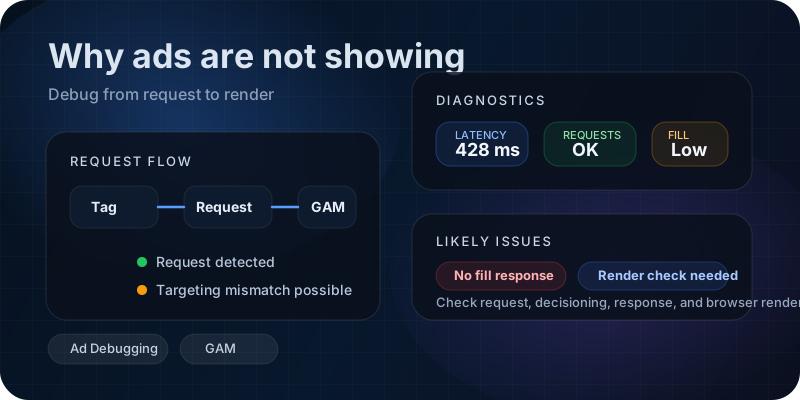
Ads not showing is one of the most common and frustrating problems in adtech. It looks simple on the surface. A slot is blank. Something is broken. But in reality, there is no single system responsible for showing an ad. It is a chain of systems working together. If any part fails, the result is the same. A blank slot.
Most people debug this the wrong way. They guess. They change random settings. They blame demand or blame GAM or blame the browser. That approach is slow and unreliable. A better way is to debug in the same order the system runs.
This guide will show you how to do that. Step by step. From the moment the page loads to the moment an ad renders.
Understand the system before debugging it
Before debugging, you need a simple mental model. Every ad request goes through these stages:
Page load → Tag execution → Ad request → Server decision → Demand → Response → RenderIf ads are not showing, the failure is somewhere in this chain. Your job is not to guess. Your job is to find where the chain breaks.
A blank ad slot is not a single problem. It is the same symptom produced by many different failures.
Step 1: Confirm that the ad request is firing
This is the most important step. Many people skip it. They assume the request is happening. Often, it is not.
Open your browser devtools. Go to the network tab. Reload the page. Filter for requests that look like ad calls. For Google Ad Manager, you will usually see requests to googletag or securepubads.
- If you do not see any ad request, your problem is in the tagging layer.
- If you see the request, move to the next step.
Common reasons why requests do not fire
- The display call is never executed.
- The slot is defined after services are enabled.
- JavaScript error stops execution before the ad code runs.
- The slot ID does not match the DOM element.
googletag.cmd.push(() => {
  const slot = googletag.defineSlot('/1234/site/home', [[300, 250]], 'ad-1')
    ?.addService(googletag.pubads());

  googletag.enableServices();

  googletag.display('ad-1');
});
If this function never runs, nothing else matters. There will be no request and no ad.
Step 2: Validate what you are requesting
Even if the request fires, it might be invalid. The server can only respond to what you ask. If the request is wrong, the result will be empty.
Look at the request parameters. Focus on these fields:
- Ad unit path
- Slot sizes
- Key values
- Device and viewport
Small mistakes here cause silent failures. A typo in ad unit path. A size that does not exist. A targeting key that filters out all line items.
Common request-level issues
- Ad unit path does not exist in GAM.
- Size mapping results in empty size for current device.
- Wrong key values block all eligible line items.
- Environment mismatch between staging and production.
Step 3: Check if GAM had anything to serve
At this stage, the request is correct. Now the question is simple. Did the ad server find something to serve?
Use GAM delivery diagnostics if you have access. This is your best source of truth.
- Was any line item eligible?
- Did targeting match?
- Was the line item blocked by frequency caps?
- Was it excluded due to competition rules?
Always separate two cases: nothing was eligible, or something was eligible but lost.
If nothing was eligible, it is a targeting or setup issue. If something was eligible but lost, it is an auction or demand issue.
Step 4: Understand demand and no fill
Sometimes everything is correct, but there is still no ad. This usually means no fill.
No fill is not always a bug. It can happen due to real market conditions.
- Low demand in certain geographies
- Low traffic quality
- Very high floor prices
- Time of day effects
The key is to confirm whether the system is working correctly and simply has no demand, or if something is blocking demand.
Step 5: Check the response
Even when there is demand, the response might still be empty or invalid.
Inspect the response payload. Look for:
- Empty creative
- Placeholder response
- Invalid creative data
If the response is empty, the issue is upstream. If the response contains data, the issue might be rendering.
Step 6: Check rendering and browser issues
This is where many subtle bugs appear. The system worked, but the browser failed to render the ad.
- JavaScript errors inside creative
- Blocked iframe content
- Content Security Policy restrictions
- Mixed content issues
- Ad blockers
Use the console and inspect the iframe. Rendering issues are often visible there.
Step 7: Consider timing and race conditions
Not all bugs are static. Some happen only under certain timing conditions.
- Slots loaded before layout stabilizes
- Delayed script loading
- Lazy loading misconfiguration
If the issue is inconsistent, timing is a strong suspect.
A simple debugging checklist
- Is the request firing?
- Is the request correct?
- Did GAM find eligible line items?
- Was there demand?
- Was the response valid?
- Did rendering succeed?
If you follow the system, you will find the problem. If you guess, you will chase symptoms.
Final thoughts
Ad systems are complex, but they are not random. Every failure has a cause. The trick is to stop guessing and start following the system step by step.
Once you build this habit, debugging becomes faster, calmer, and far more reliable.
If you want a diagnostic page that helps your team move faster, share the inputs you can provide and the output you would trust.
Related posts
More writing in Ad Debugging.